Copilot Cowork Plugins: Building Custom Skills and MCP Connectors for Your Internal Systems


Copilot Cowork carries out multi-step tasks across Outlook, Teams, Word, Excel and SharePoint. The data your team needs it to work with, such as CRM records, ERP job queues and internal project APIs, lives in systems that have no native Copilot connector, and Copilot Cowork plugins are how you connect them.
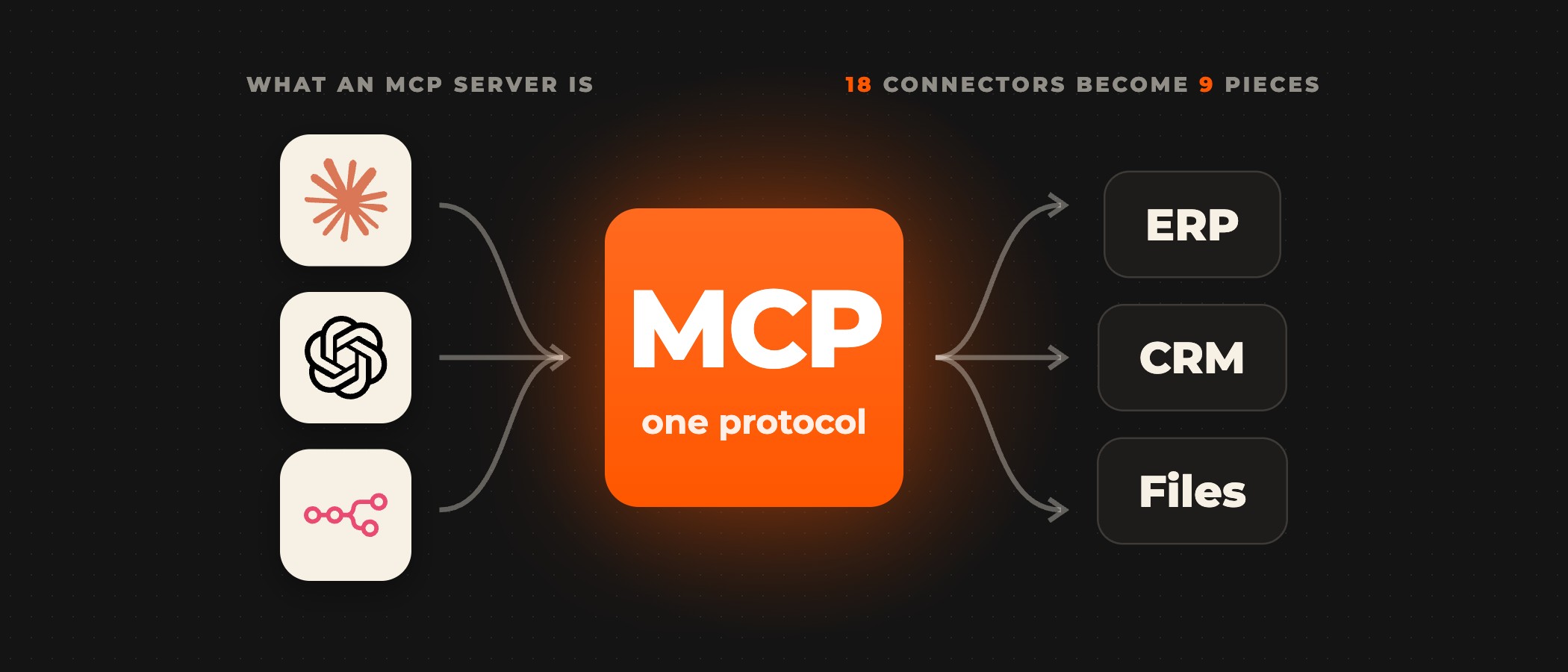
A Copilot Cowork plugin is a Microsoft 365 app package that holds skills and connectors. Skills are SKILL.md workflows that teach Cowork how your team does a task, and connectors are remote MCP servers that give Cowork access to your data and APIs. To connect Cowork to an internal system, you put an MCP server in front of it and sign users in with OAuth or Microsoft Entra single sign-on, because Cowork does not accept API keys yet. You then build and validate the package with Microsoft's wiqd CLI, test it on your own account, and have an administrator deploy it to the groups that need it. Microsoft documents each of these steps in its guide to building plugins for Copilot Cowork.
What skills and MCP connectors each do
Microsoft describes skills as "prompt-based workflows that teach Cowork new domain expertise". Each skill is a folder holding one SKILL.md file, and it is where your templates, policies and process steps go. Skills follow the Agent Skills open standard, so the same file works in Claude Code and Cursor. A connector is a remote MCP server that gives Cowork access to external data sources and APIs, and its tools carry out the actions, such as querying an ERP for open purchase orders, updating a CRM contact status or retrieving a project timeline. A plugin can carry skills only, connectors only, or both, up to 20 skills and 10 connectors in one package, according to Microsoft's plugin guide.
The Model Context Protocol behind each connector is, in its project's words, "an open-source standard for connecting AI applications to external systems", and its introduction to MCP compares it to a USB-C port for AI applications. Our guide to MCP servers explains how the protocol works.
How Cowork signs users in to your systems
Microsoft's plugin guide states that "Support for API key authentication isn't available in Cowork yet", so a connector to an internal system signs users in with OAuthPluginVault, which Microsoft recommends for production, or with Dynamic Client Registration, where Cowork creates the OAuth client itself. Dynamic Client Registration works only in Cowork, so a plugin that must also run in Copilot Chat uses OAuthPluginVault. The connector's referenceId points to credentials in the Microsoft Enterprise Token Store, and in Microsoft's words "secrets never appear in the manifest or skill files". An administrator cannot sign in on behalf of users, so each user completes the connector's sign-in or consent the first time. Before you deploy, read our guide to running MCP servers securely in enterprise environments.
An internal system that only takes an API key needs a different route. Microsoft's guide to building a Cowork plugin for a line-of-business API names four starting points. A REST API that requires an API key gets a private MCP adapter that reads the key from Azure Key Vault, or, where its operations already fit, an export of the API as an MCP server in Azure API Management. A REST API protected by Microsoft Entra ID gets an adapter that calls it with a managed identity or an on-behalf-of token, with no key to store. An MCP server that requires an API key stays as it is, behind an API Management MCP proxy that checks Entra tokens and adds the key. An MCP server protected by Entra ID connects directly through Entra single sign-on, with API Management added where you need central policies, rate limits or private network access.
For a REST API with an API key, Microsoft documents the request in six steps. A user asks Cowork for information from the internal API. Microsoft 365 gets a delegated Entra access token from the Microsoft Enterprise Token Store, and the user may need to sign in or consent. Cowork sends the MCP request and the token to API Management. API Management validates the token and forwards the request to the private adapter. The adapter validates the token again, checks the tool's permissions, reads the API key from Key Vault with its managed identity and calls one approved operation. The adapter returns a bounded result or an explicit error, and Cowork uses the result to answer the user.
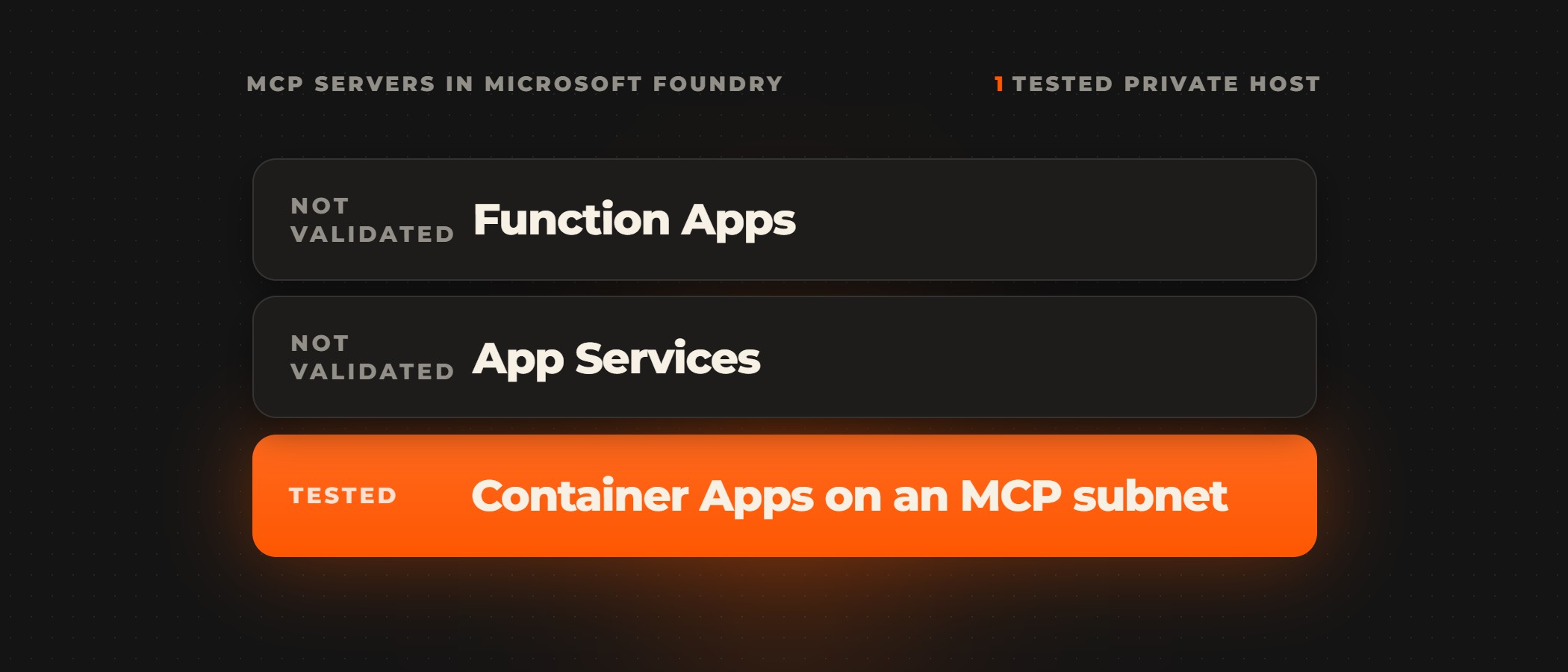
The key never reaches Cowork or the plugin package. Microsoft's line-of-business guide sets out the split: "The user's token controls who can call the connector. The API key controls what the adapter can read." Unless the adapter adds its own authorization, everyone who can use the connector gets the same backend access, so Microsoft limits the pattern to read-only data those users may see and says to add writes "only with their own permissions and testing". Host the adapter where only API Management can reach it, such as an internal Azure Container Apps environment, and give its managed identity access to that one secret in Key Vault.
How to build a Copilot Cowork plugin, step by step
The wiqd CLI that Microsoft's plugin guide recommends scaffolds the package, keeps manifest.json and the skill folders in sync, and runs the platform's validation rules before you upload. The CLI is in preview, and Microsoft warns that "its commands and generated output can change before general availability". Everything it generates is a plain Microsoft 365 app package that you can open, edit and version yourself.
- Design the tools. List the endpoints, data fields and actions your skills need, then shape the tools according to Microsoft's tool design guidelines. An API with fewer than 15 operations gets one tool per action, an API with 50 or more gets a search tool and an execute tool, each tool gets a descriptive name such as
get_bond_price, and every parameter gets a description, because that description is what the agent reads. - Stand up the MCP server, which according to Microsoft's connector requirements speaks Streamable HTTP over HTTPS with TLS 1.2 or later, uses JSON-RPC 2.0 messages, supports
tools/listandtools/call, and answers each tool call in under 30 seconds. To test a server on your own machine, expose it over HTTPS with a dev tunnel. - Annotate every tool. Cowork asks the user to confirm a call when
readOnlyHintis false ordestructiveHintis true, and Microsoft's plugin guide says tools without annotations "are treated as destructive and require confirmation". For non-Microsoft MCP servers that confirmation "is being rolled out progressively", so set the hints now. Have a failed call return an explicit error that Cowork can report to the user. - Scaffold and validate. Run
wiqd plugin create,wiqd plugin add skillandwiqd plugin add connector, thenwiqd plugin validateas you build andwiqd plugin validate --mode deep, which packages the plugin and checks the.zipagainst the rules the upload uses. The wiqd CLI does not scaffold connector authentication yet, so you write the connector'sauthorizationblock yourself. - Provision, package and test. Run
wiqd plugin provisionandwiqd plugin package, then add the.zipin Cowork under Customize, Plugins, and choose Only you, so the plugin stays on your account while you test its skills, connectors and tool calls end to end. - Publish. An administrator uploads the package in the Microsoft 365 admin center under Manage apps, Upload custom app, which lists the plugin in the Discover section for your organization. A plugin for public distribution goes to the Microsoft 365 App Store through Partner Center.
Deploying the plugin and controlling who uses it
Microsoft's guide to managing plugins for Copilot Cowork describes five ways a plugin reaches people.
| Deployed by | Reaches | Approval | |
|---|---|---|---|
| Only you | an author who uploads a plugin in Cowork | their own account | no approval applies |
| Shared with people | any user who uploaded a plugin | the people they choose | no approval applies |
| Whole organization | a user's request | the whole organization | a tenant administrator approves it |
| Admin deployment | a tenant administrator or a Copilot administrator | for all users or for chosen groups, and those users get it automatically and cannot remove it | the admin |
| App Store | through Partner Center | users acquire a plugin themselves | Microsoft 365 App Store validation, a review that packages distributed inside your own tenant do not go through |
Admin deployment to groups, one team at a time, gives each team the plugin built for its work. The admin center can also block a plugin for everyone, from the next new conversation. Microsoft's guide to managing plugins notes that "There's currently no single tenant setting that turns off plugin sharing for every user", so the block is the control for a plugin a user has shared. Sharing grants no access a person did not already have, since each recipient completes the connector's own sign-in, and plugin activity appears in Microsoft Purview audit logs under Copilot activities. Every user of a plugin needs a Microsoft 365 Copilot licence, and custom plugins do not run in Cowork on mobile.
In the words of Microsoft's line-of-business guide, "Plugin distribution and API authorization are separate controls." To limit who can call the API behind a connector, set Assignment required to Yes on its Entra enterprise application, assign the users or security groups who may call it, and test with one assigned and one unassigned account.
Bringing a Claude plugin across, and taking yours elsewhere
A Claude Code plugin converts with its skills and MCP servers. Microsoft's plugin guide says its skill folders are "copied verbatim", and each server in .mcp.json becomes a connector whose referenceId is a placeholder you replace with your OAuth client registration ID before you publish. Commands, agents and hooks are "Not yet supported", so a plugin built around them needs another design before the conversion starts. The guide gives two routes. wiqd plugin import keeps the plugin in the wiqd lifecycle, but an imported project supports only validate, show and list and cannot yet be packaged. For a publishable package today, Microsoft points to the conversion script, atk import openplugin in the Microsoft 365 Agents Toolkit CLI.
The plugin stays portable in the other direction as well. MCP is an open standard, and wiqd plugin export --format claude-plugin writes the project out in the Claude Code layout, with Cursor and the open plugin format as the other targets. Teams that also work in Claude Code or Cursor use the same skills and MCP servers there.
Building it with Ovidius
We build the plugins that connect Copilot Cowork to your CRM, ERP and internal APIs. The connectors are remote MCP servers secured with OAuth, and we configure partner connectors where they exist and build yours where they do not. Your templates, policies and process steps become skills, packaged with the connectors into one plugin per team and deployed by your admin to the groups that need it. Every build is tested in staging first, on test data, the approval steps are tested on real cases, and your IT team reviews the plugins. Scoping sets the timeline for your workflow.
Frequently asked questions
What is a Copilot Cowork plugin?
A Copilot Cowork plugin is a Microsoft 365 app package, a .zip file, that carries skills, connectors or both. Skills are SKILL.md workflows written to the Agent Skills open standard, and connectors are remote MCP servers that give Cowork access to external data and APIs. Microsoft's plugin guide allows up to 20 skills and 10 connectors in one package, and an administrator deploys it from the Microsoft 365 admin center like any other Microsoft 365 app.
Can a Copilot Cowork connector use an API key?
Cowork connectors cannot use an API key yet, according to Microsoft's plugin guide, so they sign users in with OAuth, which Microsoft recommends for production, or with Dynamic Client Registration. For an internal API that only takes a key, Microsoft's line-of-business pattern puts a private MCP adapter behind Azure API Management. Users sign in with Entra ID, and the adapter reads the key from Azure Key Vault, so the key never sits in the plugin package.
Do I need the wiqd CLI to build a plugin?
You can build without it, but Microsoft's plugin guide recommends the wiqd CLI and keeps assembling the package by hand for teams that cannot install tooling or that run their own packaging pipeline. The CLI scaffolds the package, keeps the manifest and skill folders in sync, validates against the upload's rules, and provisions and shares the result. It is in preview, so its commands can change, and it does not write connector authentication yet.
Does everyone who uses a connector get the same access to the backend?
Yes, when the connector reaches the system through one shared API key. The user's token controls who can call the connector and the API key controls what the adapter can read, so unless the adapter adds its own authorization, every user of the connector gets the same backend access, according to Microsoft's line-of-business guide. Microsoft limits that pattern to read-only data those users may see. Where results must differ by user, enforce per-user access in the adapter or use on-behalf-of authentication.
When does Cowork ask a user to confirm a tool call?
Cowork asks for confirmation when a tool's readOnlyHint annotation is false or its destructiveHint annotation is true, and it treats a tool with no annotations as destructive. Microsoft's plugin guide says annotation-driven confirmation for non-Microsoft MCP servers is being rolled out progressively, and that setting the hints now is forward-compatible. Microsoft's own tools, such as Graph and Dataverse, follow Cowork's built-in policy whatever their annotations say.
Who can deploy a plugin to the whole organization?
A tenant administrator, or a user with the Copilot administrator role, deploys plugins from the Microsoft 365 admin center to all users or to chosen groups, and those users get the plugin automatically. A user who uploaded a plugin can also request publication to the whole organization, but the plugin goes live only after a tenant administrator approves it, according to Microsoft's guide to managing plugins for Copilot Cowork.
Connecting Copilot Cowork to your own systems? Book a discovery call. A senior partner runs the call and tells you which of your workflows suit Copilot Cowork, and which need a custom build, before anything is scoped.