n8n Tutorial for Novices: Mastering the Core Nodes for Resilient Automation

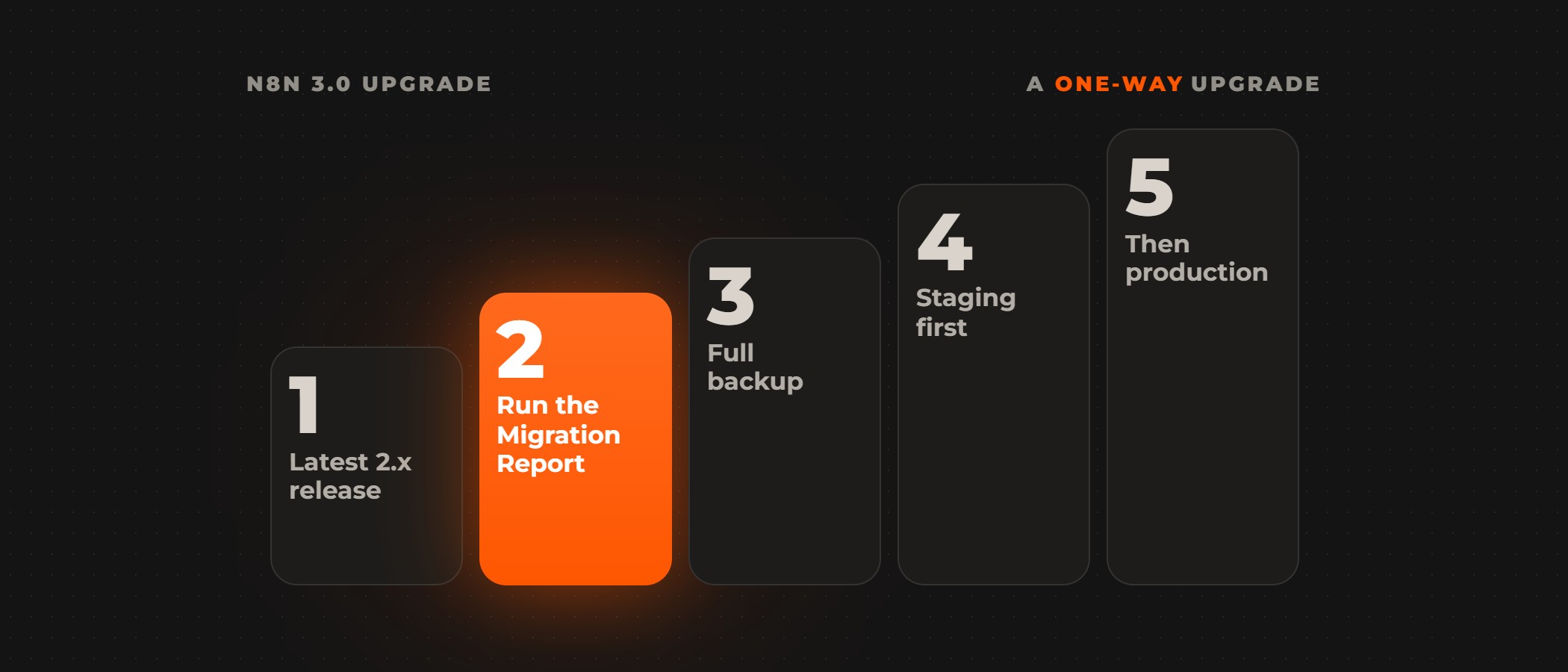
Tutorials recorded on n8n 1.x still teach nodes and settings that current n8n has renamed or removed, and n8n 3.0 removes the Cron, Interval and legacy OpenAI nodes outright, so a workflow copied from an older guide can fail as soon as it runs (per the n8n 3.0 breaking changes). Start with the core nodes, learned as they work today.
The core nodes to learn first are the Schedule Trigger and the Webhook to start a workflow; Data Tables, Google Sheets, the Code node, Merge and Aggregate, and Execute Sub-workflow to store and shape data; and the OpenAI node and the AI Agent for AI. Learn each one in its current form: the Schedule Trigger in place of Cron and Interval, a webhook that registers when its workflow is published, Aggregate when you need one list, and an AI Agent with a tool sub-node and a memory sub-node.
With n8n 3.0, now an early access release, n8n removes legacy nodes and tightens execution limits, so build on current node behaviour from day one: a workflow that uses a removed node fails when it runs (per the n8n 3.0 breaking changes).
Triggers: starting a workflow
The Schedule Trigger
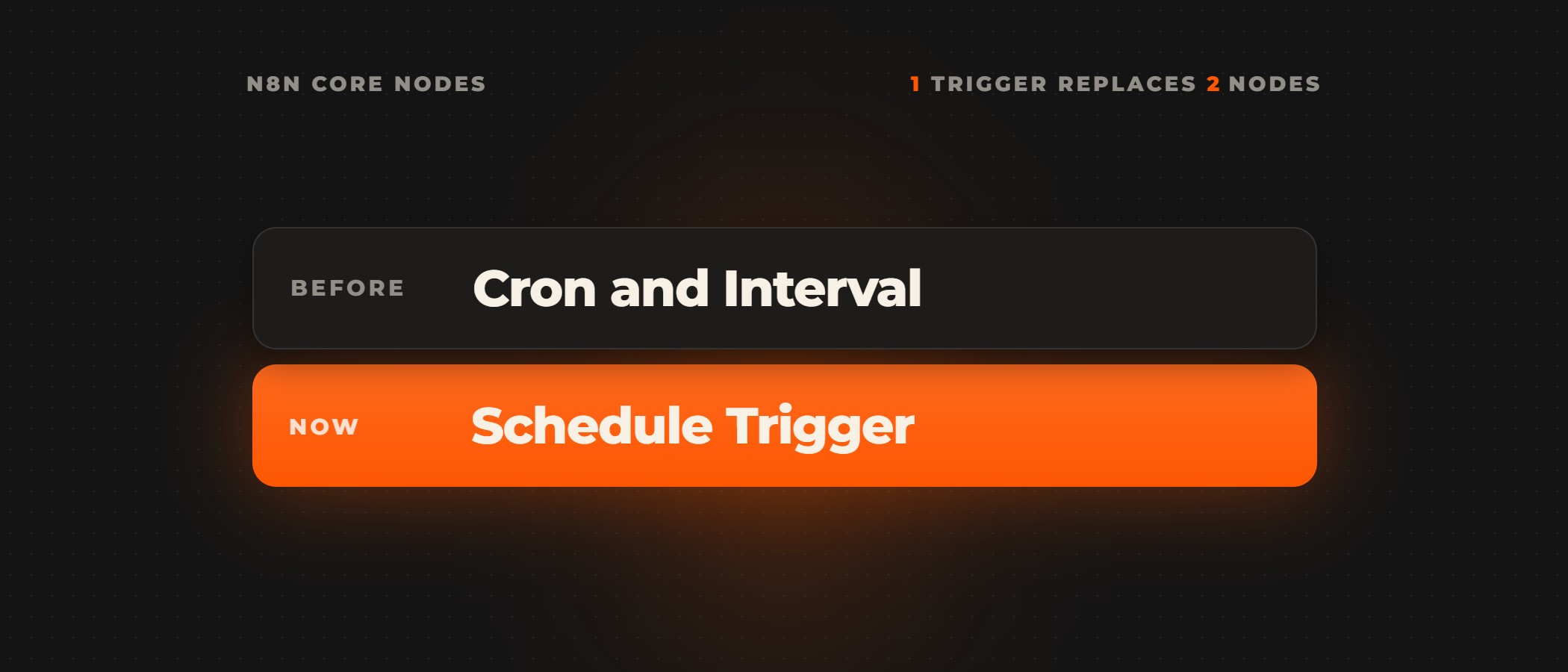
The Schedule Trigger is the one node for time-based runs. It replaces the Cron and Interval nodes, which n8n 3.0 removes; the breaking changes page says to "Replace Cron and Interval with the Schedule Trigger node" (per the n8n 3.0 breaking changes). Older guides often tell you to drag in a Cron or Interval node, and in n8n 3.0 that workflow fails, so rebuild every legacy trigger as a Schedule Trigger. From n8n 2.36, Schedule Trigger nodes added from that version can handle executions missed while the instance was down, and the default discards missed executions and resumes on schedule. From n8n 2.45.0, the Seconds and Minutes intervals run at uniform intervals measured from workflow publication rather than on clock boundaries, which changes how you plan high-frequency polling (per the Schedule Trigger documentation).
The Webhook
Older tutorials say the production webhook URL works once the workflow is activated. In current n8n, the production URL registers when the workflow is published rather than merely activated, and the webhook's maximum payload size is 16 MB (per the Webhook node documentation). A large data dump sent straight to a webhook hits that limit, so use the webhook as a lightweight entry point and offload heavy processing to downstream nodes or external storage.
Storing and shaping data
Data Tables
Data Tables store rows inside n8n. The feature launched as a beta in version 1.113.1 with a 50 MB cap (per the n8n community forum). Today all data tables in an instance are limited to 200 MiB by default, and a Code node cannot read them directly (per the Data Tables documentation).
Google Sheets
For storage outside n8n, the Google Sheets node's Append Row operation defaults to "Let Google Sheets format", which matches Google's USER_ENTERED mode and parses input as if a person typed it (per the Google Sheets operations documentation). A phone number that starts with "+" is then read as a formula, and the row fails (per the Google Sheets API ValueInputOption reference). Switch the cell format option to "Let n8n format" to write the value as it is.
The Code node
The Code node runs JavaScript or Python. Native Python runs on task runners and has been stable since n8n 2.0, which removed Pyodide. On n8n Cloud, JavaScript can use only the crypto and moment modules and Python cannot import any libraries, so a script that needs other libraries runs on a self-hosted instance (per the Code node documentation).
Before 3.0, the Code node ran with a 300-second task timeout and an Ask AI tab. n8n 3.0 sets a 60-second default task timeout and removes the Ask AI tab, so check how long your longer scripts run before you upgrade (per the n8n 3.0 breaking changes).
Merge and Aggregate
Merge and Aggregate do different jobs. The Combine option of the Merge node does not collect items into a single array: it joins items by matching fields, position, or combinations (per the Merge node documentation). Collapsing many items into a single list is the Aggregate node's job, and Split Out does the opposite, turning one item that holds a list into one item per entry (per the Split Out node documentation). Together they replace the Item Lists node, which n8n 3.0 removes. The Merge node needs version 1.49.0 or later for more than two inputs or the SQL Query mode (per the Merge node documentation).
Sub-workflows
As a workflow grows, one large canvas becomes hard to debug. The Execute Sub-workflow node runs a different workflow from the one it sits in (per the Execute Sub-workflow documentation), so common steps such as error notification, data formatting and deduplication can live in their own sub-workflows rather than being copied into every workflow that needs them.
Error handling and retries
Production workflows have to survive failed API calls without losing records. Each node can retry on fail, rerunning until it succeeds, and its On Error setting can stop the workflow, continue, or pass the error to the next node (per n8n's node settings documentation). Each workflow can also name an error workflow, which starts with the Error Trigger node and runs when an execution fails, for example to send an email or Slack alert (per n8n's error handling documentation). Configure automatic retries, or route failures to a dedicated error workflow, so a failed call never drops records without an alert.
AI nodes: from one model call to an agent
The OpenAI node V2, available from n8n 1.117.0, supports the OpenAI Responses API and removes support for the Assistants API, and its text operations are now "Generate a Model Response" and "Generate a Chat Completion" (per the OpenAI node documentation). n8n 3.0 removes the legacy OpenAI node, so a workflow that still uses it needs rebuilding before the upgrade (per the n8n 3.0 breaking changes).
All AI Agent nodes now work as a Tools Agent: connect a chat model and one or more tools, and the agent decides which tools to call to complete a task (per the AI Agent node documentation). The agent type setting is deprecated from n8n 1.82.0, and you must connect at least one tool sub-node, or the agent will not run. n8n 3.0 removes version 1 of the AI Agent node (per the n8n 3.0 breaking changes).
An AI Agent keeps no conversation history unless you attach a memory sub-node, such as Simple Memory. On a queue-mode instance, Simple Memory does not work in an active production workflow, because n8n can't guarantee that every call reaches the same worker (per the Simple Memory documentation). Plan where the agent's memory lives before you deploy an agent your customers talk to.
Building with an n8n partner
The core nodes are the start; running workflows in production also takes hosting, monitoring and upgrades. Ovidius AI is a Select Partner in n8n's Expert Partner program. Our n8n consultants build, fix, set up, teach and run n8n on self-hosted instances in your own cloud, with queue mode on Redis and retries, an error workflow and an alert on every production workflow.
Frequently asked questions
What are the core nodes in n8n?
They are the building blocks of a workflow: the Schedule Trigger and the Webhook to start a workflow; Data Tables, Google Sheets, the Code node, Merge and Aggregate, and Execute Sub-workflow to store and shape data; and the OpenAI node and the AI Agent for AI. Learn them as they work in current n8n, since 3.0 removes the Cron, Interval and legacy OpenAI nodes older tutorials use.
What replaced the Cron and Interval nodes in n8n?
The Schedule Trigger. n8n 3.0 removes the Cron and Interval nodes, and its breaking changes page says to replace them with the Schedule Trigger node. A workflow that still uses either one fails in n8n 3.0, so rebuild each legacy trigger as a Schedule Trigger before you upgrade.
Why does an n8n production webhook not respond?
Check first that the workflow is published. In current n8n, the production URL registers when the workflow is published rather than merely activated, as the Webhook node documentation says. A call that sends more than the webhook's 16 MB maximum payload size also fails, so keep the webhook as a lightweight entry point and offload heavy processing to downstream nodes or external storage.
Why does the n8n Merge node not return one list?
Because Merge joins items rather than collecting them: its Combine option joins items from two or more inputs by matching fields, position or combinations, and does not collect items into a single array. To collapse several items into a single list, use the Aggregate node. Split Out does the opposite of Aggregate, turning one item that holds a list into one item per entry.
Why do phone numbers fail in the n8n Google Sheets node?
Because Append Row defaults to "Let Google Sheets format", which parses input as if a person typed it, so a number that starts with "+" is read as a formula and the row fails. Switch the cell format option to "Let n8n format" to write the value as it is.
Does the n8n AI Agent remember the conversation?
Only with a memory sub-node attached, such as Simple Memory. Without one, the agent keeps no conversation history. On a queue-mode instance, Simple Memory does not work in an active production workflow, because n8n can't guarantee that every call reaches the same worker, so plan where the agent's memory lives before you deploy it.
Building your first n8n workflows? Book a discovery call: a senior partner runs the call and scopes the work with you, so the person you meet first is the person who agrees what gets built.