How to Turn On Copilot Cowork: Licenses, Spending Policies, and Plugin Rollout


To turn on Copilot Cowork, an admin enables usage-based billing in the Microsoft 365 admin center and adds a spending policy that selects Cowork for a security group of pilot users. Each user in that group also needs a Microsoft 365 Copilot license, and the team's plugins are deployed to the same group. Microsoft's Cowork admin guide states the first condition: "To allow users to access Cowork, admins must enable usage-based billing."
Access is granted through a spending policy you configure in the Microsoft 365 admin center, and we recommend reaching it in five steps: assign Microsoft 365 Copilot licenses, put the pilot users in a security group in Microsoft Entra ID, activate usage-based billing with the default policy scoped first, add a spending policy that selects Cowork for that group, and deploy the team's plugins to the same group. Microsoft fixes two links in that chain, since the default policy has to be active before you add another policy, and its scope has to be set before you select Activate. Taken in this order, the steps open Cowork to nobody before the group, the licenses and the limits are ready.
| Where | Controls | Scope | |
|---|---|---|---|
| Copilot license | to each pilot user | makes a user eligible | each user |
| Spending policy | Copilot > Cost Management > Configuration | who can use Cowork as well as how many Copilot Credits they can spend | All users, or through a security group |
| Discovery setting | AI experiences enabled by usage-based billing | visibility only, not access | the tenant |
| Model settings | Copilot > Settings | which models users see | the tenant |
| Model templates | a Model templates step | limit which models the group sees | the users in its scope |
| Plugin deployment | Agents > All agents or Agents > Tools | Users in the chosen group get the plugin automatically | All users or Specific users/groups |
Configuring the access path: spending policies and Cost Management
Navigating the admin center
Spending policies live in the Microsoft 365 admin center under Copilot > Cost Management > Configuration, and a Global administrator or a Billing administrator activates usage-based billing there, according to Microsoft's setup guide for usage-based billing. The paths in this post are the ones Microsoft Learn documented on 15 November 2026, and Microsoft has moved this control before. During the preview, the Cowork entry under Agents > All Agents managed access, and Microsoft's Cowork admin guide now says configuration on it "has no effect on who can use Cowork". Check each path on Microsoft Learn before you change a production tenant.
Establishing the spending policy
A spending policy sets who can use Cowork as well as how many Copilot Credits they can spend. Microsoft's access guide says "A spending policy is an access control, not only a budget", and "A policy with a limit of one credit still grants access." Without an active spending policy that includes Cowork, Cowork stays unavailable whatever licenses you have assigned.
To add a policy, select + Add spending policy on the Configuration tab, as Microsoft's spending policy guide sets out. For the scope, choose Specific groups and select the pilot security group, because a policy reaches specific users only through security groups. Under agents and services, select Cowork, and turn off Auto-apply new services if you want to review each new Copilot service before the policy covers it, since the setting is on by default. Selecting Cowork adds a Model templates step, where you can limit which models the group sees. The policy applies to the users in its scope as soon as you create it.
A user in more than one policy that selects Cowork has access through any of them, and Microsoft's access guide says the limits then come from one policy: the highest per-user limit, then the largest overall policy limit, then the most recently created policy. To take Cowork away from a user, remove that user from every spending policy that includes Cowork, since a low credit limit doesn't block access.
Microsoft's access guide calls credit limits "a spending safeguard, not a real-time access gate", and says they "are evaluated asynchronously, so a user might be able to start one or more tasks after their limit is reached." For the per-user limit, the guidance reads "Set at least 2,000 credits per user per month", according to Microsoft's spending policy guide, and a user who reaches the limit loses access until credits reset on the first of the month.
Discovery and model settings
Two other settings change what users see without changing who has access. The discovery setting, AI experiences enabled by usage-based billing, "controls visibility only, not access", in the words of Microsoft's access guide, and the Cowork admin guide adds that with discovery on and usage-based billing off, users can request access in the app for an admin to review. Model settings control which models users see. An admin can turn models off, the Anthropic models included, under Copilot > Settings, and Cowork's Auto option then picks from the remaining models, such as the GPT models. In a tenant inside the EU Data Boundary, "only GPT models are supported", according to Microsoft's common questions page.
Securing the data layer
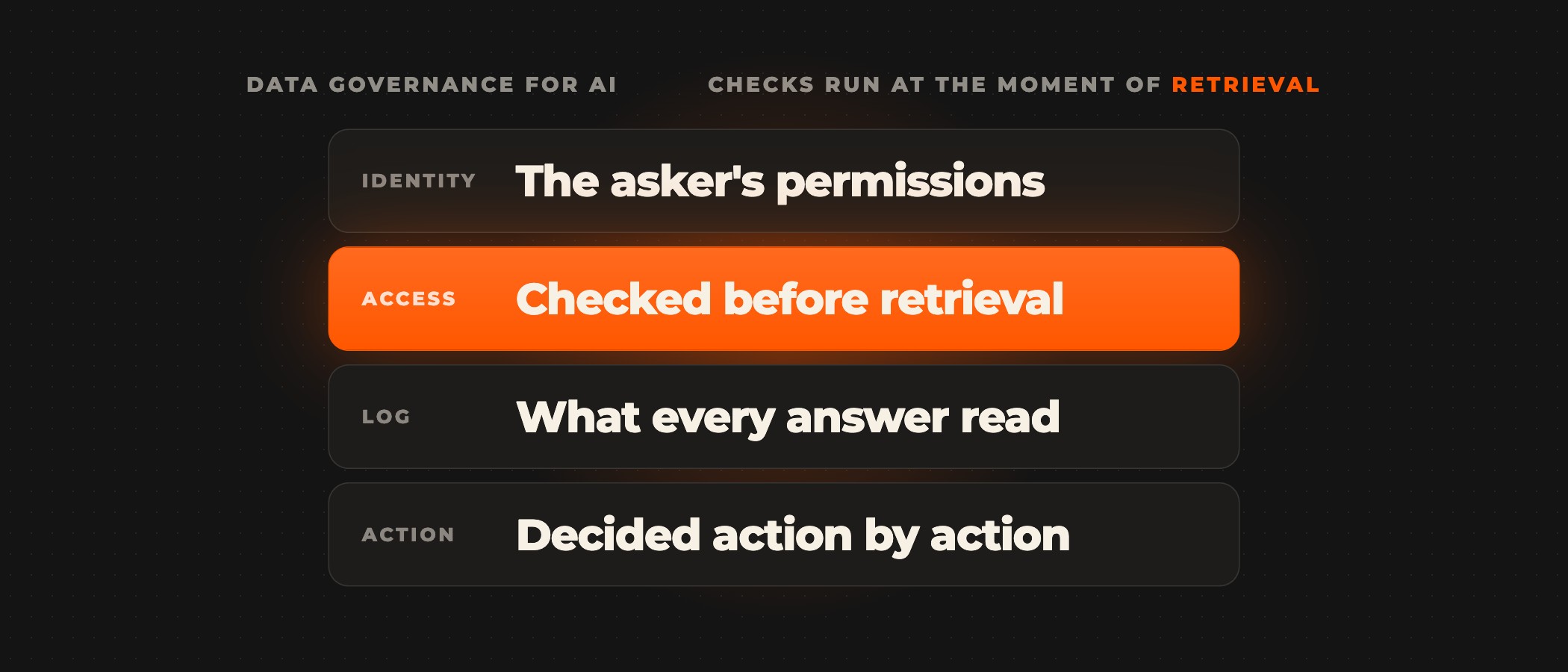
Enabling Cowork also means deciding what it can read and change. Cowork "inherits your permissions", according to Microsoft's common questions page, so it reaches only the files and emails each user can already open. Automated tasks run as the user who created them, and by default Cowork asks that user for approval before a task sends an email, posts a message or changes a shared system. Microsoft's Cowork admin guide adds that Cowork activity is recorded in the unified audit log, and that Cowork follows the same data residency model as Copilot.
Licensing prerequisites and group deployment steps
Verifying licensing prerequisites
Each Copilot Cowork user needs a Microsoft 365 Copilot license. Microsoft's usage-based billing overview lists the service as "Cowork (Copilot license required)", and Cowork itself bills through usage-based billing, so the license makes a user eligible and the spending policy grants the access. Microsoft's common questions page adds that use of Cowork is "limited to Anthropic-supported regions".
Prerequisites, in order
Work through these prerequisites before any pilot user opens Cowork:
- Assign a Microsoft 365 Copilot license to each pilot user.
- Put the pilot users in a security group in Microsoft Entra ID.
- Activate usage-based billing under Copilot > Cost Management, with the default spending policy scoped before you select Activate.
- Add a spending policy that selects Cowork for the pilot group, with a per-user limit and alerts.
Scoped group deployment
Activating the default spending policy can open Cowork to everyone. Microsoft's setup guide says "The default setup targets your entire organization and all users", and that the setup "activates AI experiences, like Cowork, that are gated by usage-based billing." Before you select Activate, choose Customize setup configuration and either scope the default policy to the pilot group or remove Cowork from the services it governs. Skipping this step opens Cowork wider than the pilot. A pilot policy with a 5,000-credit per-user limit beside a tenant policy with a 1-credit limit for all users gives every user in the tenant access to Cowork, because both policies select it, according to Microsoft's access guide. Then add the Cowork policy for the pilot group and deploy the team's plugins to that same group, so the people who can use Cowork are the people who have its plugins.
Budget allocation and cost tracking
Set limits and alerts before the pilot users are active. Alert emails start when usage reaches the threshold you set, and Microsoft's setup guide says they "continue daily until the monthly usage period resets or you adjust the spending policy." The Consumption tab in Cost Management breaks usage down by spending policy, user, group, agent or service, according to Microsoft's usage-based billing overview. The Copilot Cowork usage report, which Microsoft's Cowork admin guide links, adds a Value tab on where Cowork provides value. Together they give you the figures for an ROI case before you propose a broader rollout. To map budget against expected consumption at scale, use the Copilot Credit Estimator that the Cowork admin guide also links.
Managing Copilot Cowork plugins
A Cowork plugin is a package of skills and connectors from the Microsoft 365 App Store, and Microsoft's plugin guide for Copilot Cowork says "Users who use Cowork plugins must have Microsoft 365 Copilot licenses assigned." A tenant administrator or a Copilot administrator deploys a plugin under Agents > All agents or Agents > Tools by selecting Installed for and choosing All users or Specific users/groups. Users in the chosen group get the plugin automatically and can't remove it. To allow or block a plugin, use the Users tab under Agents > Tools, and a block takes effect for new conversations.
Users can also upload a plugin of their own and share it. Publication to the whole organization waits for an administrator's approval, sharing with specific people does not, and Microsoft states that "There's currently no single tenant setting that turns off plugin sharing for every user." An admin can't sign in to a plugin's connector on a user's behalf, so each user completes the connector's own sign-in, and plugin activity appears in Microsoft Purview audit under Copilot activities. Custom skills need the same attention, since each user can write up to 50 of them and "Microsoft doesn't validate custom skills created by users", according to Microsoft's common questions page.
Settle the governance decisions before the pilot rather than retrofitting them after it, and write them into an AI use policy, a document kept apart from the spending policies in the admin center. It names which groups receive Cowork, which plugins and connectors each team may use, which data never goes into Cowork, and where a person reviews Cowork's output before it is sent or changes a shared system.
Licenses, spending policies and plugin deployment are three distinct control surfaces, and they have to work as one system. A spending policy left at All users opens Cowork to the whole tenant, a license with no policy behind it gives no access, and a plugin a user shares stays outside your deployment until you block it. Ovidius builds the plugins that connect Copilot Cowork to your CRM, ERP and internal APIs, sets the spending limits and approvals, with spending policies agreed per group, and rolls Cowork out one team at a time.
Frequently asked questions
What is a spending policy in Copilot Cowork?
A spending policy is the setting in Cost Management, in the Microsoft 365 admin center, that grants Copilot Cowork to the users in its scope and sets how many Copilot Credits they can spend. Microsoft's access guide calls it "an access control, not only a budget", so any user in a policy that selects Cowork can use Cowork, however low the limit.
Does a Microsoft 365 Copilot license give a user Copilot Cowork?
No. Each Cowork user needs a Microsoft 365 Copilot license, but the license only makes the user eligible. Access comes from a spending policy that selects Cowork and includes the user, through All users or through a security group, so a user with a license and no such policy can't use Cowork.
How do you remove a user's access to Copilot Cowork?
Remove the user from every spending policy that includes Cowork. Lowering the user's credit limit doesn't block access, because Microsoft's access guide says a policy with a limit of one credit still grants it. In practice that means taking the user out of each security group a Cowork policy is scoped to, and checking that no policy scoped to All users selects Cowork.
Can a user go over a Copilot Cowork credit limit?
Yes, for a short time. Microsoft's access guide says limits "are evaluated asynchronously, so a user might be able to start one or more tasks after their limit is reached." Once the limit takes effect, the user loses access until credits reset on the first of the month, so use the policy's scope, not the limit, to decide who can use Cowork.
Can users share their own plugins in Copilot Cowork?
Yes. A user can upload a plugin package and share it with specific people without approval, while publication to the whole organization waits for an administrator to approve it. Microsoft says there is currently no single tenant setting that turns off plugin sharing for every user, so the control is to block a plugin under Agents > Tools, which takes effect for new conversations.
Ready to run your Copilot Cowork pilot? Book a discovery call, and a senior partner tells you which of your workflows suit Copilot Cowork and which need a custom build, before anything is scoped.